



How you turn off Silent mode on your iPhone depends on whether your device has a Ring/Silent switch or an Action button on the side.
Both methods are simple, and if the physical control is not working, there are also other ways to restore sound on your iPhone.
Does Your iPhone Have an Action Button or a Ring/Silent Switch?
Before turning off Silent mode, check which physical control your iPhone uses. Some models have a traditional Ring/Silent switch, while newer models use an Action button.
The steps are slightly different depending on which control your iPhone has.
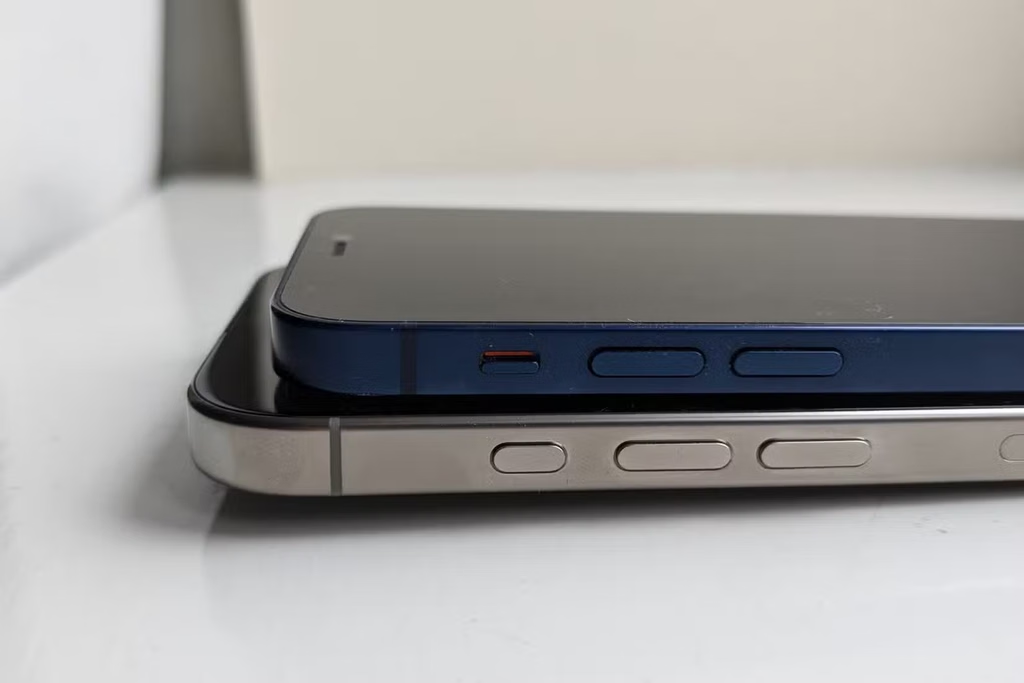
Older iPhone models use a Ring/Silent switch on the left side of the device, above the volume buttons. Starting with newer models, Apple replaced this switch with an Action button.
If you’re not sure which one your iPhone has, look at the left side above the volume controls. A small switch that moves back and forth is the Ring/Silent switch. If you see a small pressable button instead, your iPhone uses the Action button.
How to Turn Off Silent Mode With an Action Button
By default, the Action button is set to control Silent mode on supported iPhone models. Press and hold the Action button to turn Silent mode on or off.
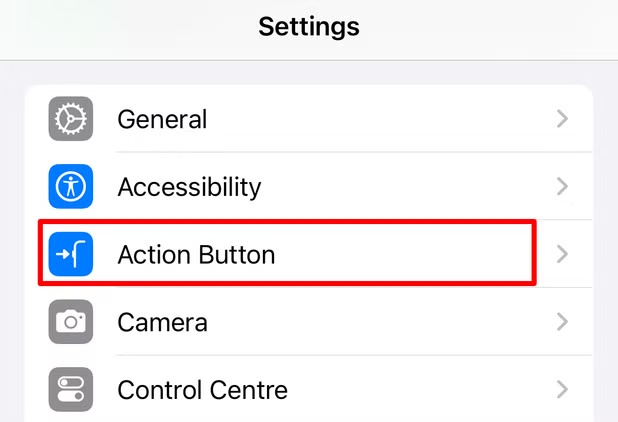
If your Action button is assigned to a different feature, go to Settings > Action Button and swipe until you reach Silent Mode. Once selected, press and hold the Action button whenever you want to toggle Silent mode.
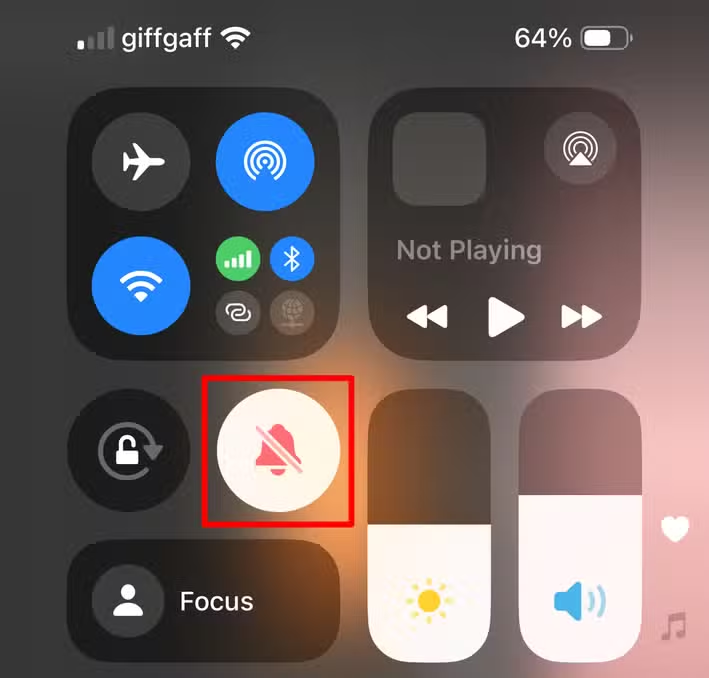
If you want to keep the Action button assigned to another feature, you can turn Silent mode on or off from Control Center instead.
Swipe down from the top-right corner of the screen to open Control Center, then look for the Silent Mode control.
If you don’t see it, tap the plus (+) icon in the top-left corner, choose Add a Control, and search for Silent. Add the control, and you’ll be able to toggle Silent mode directly from Control Center.
If the Action button or Control Center method doesn’t work, you still have a couple of other options.
You can ask Siri to turn off Silent mode, or go to Settings > Sounds & Haptics and switch off the Silent Mode option at the top of the screen.
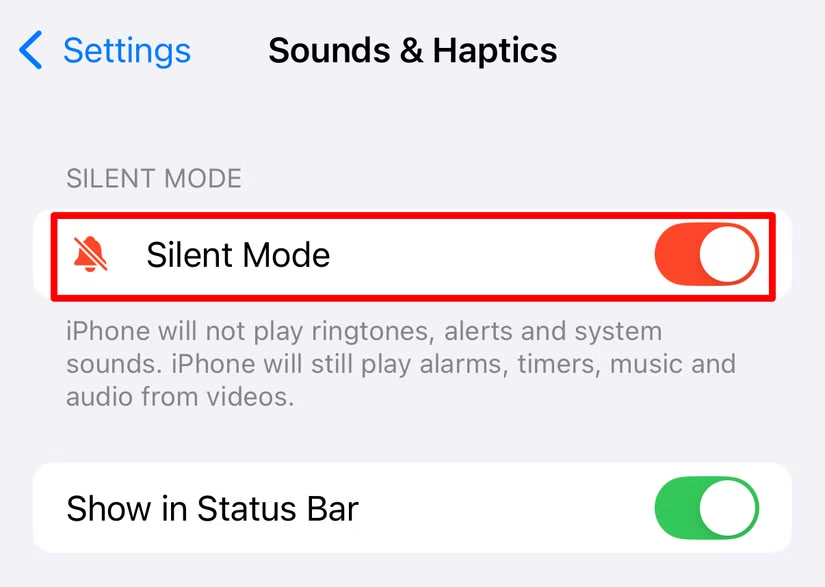
How to Turn Off Silent Mode With a Ring/Silent Switch
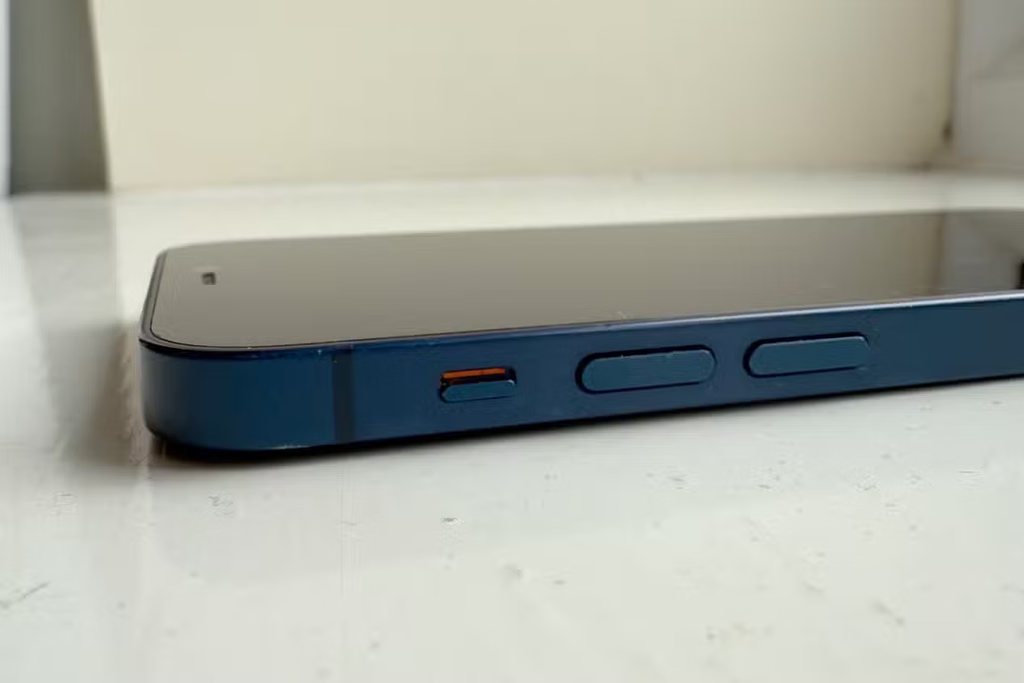
If your iPhone has a Ring/Silent switch, you can use it to switch between Ring and Silent modes.
Move the switch toward the front of the iPhone to enable Ring mode. A message will appear on the screen to confirm the current sound mode.
When Silent mode is enabled, you’ll usually see an orange indicator on the switch.
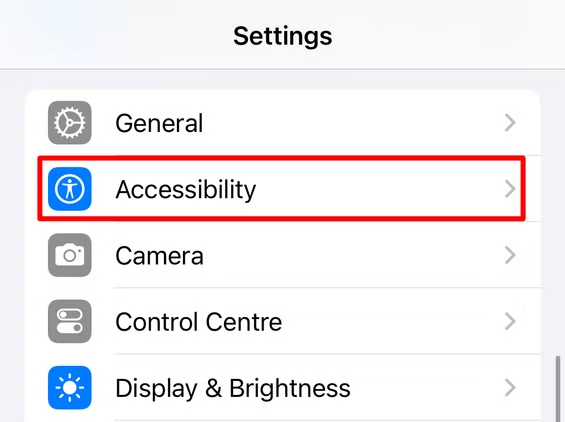
If the Ring/Silent switch isn’t working, you can also use an option in the Accessibility settings to turn off Silent mode on your iPhone. To do so, go to Settings > Accessibility then scroll down to select the “Touch” option. Open the “AssistiveTouch” page and hit the toggle to enable “AssistiveTouch.”
A white AssistiveTouch button will appear on your iPhone screen. Tap it to open the AssistiveTouch menu, then select Device > Unmute to turn off Silent mode.
When you’re finished, tap anywhere outside the AssistiveTouch menu to close it.

If you want to leave AssistiveTouch enabled, you can drag the floating button to another part of the screen so it stays out of the way while you use your iPhone.
You can also set up a quick shortcut to turn AssistiveTouch on or off whenever you need it.
Frequently Asked Questions:
How do I turn off Silent mode on an iPhone?
You can turn off Silent mode using the Ring/Silent switch, Action button, Control Center, Settings, Siri, or AssistiveTouch, depending on your iPhone model.
How do I turn off Silent mode with the Action button?
Press and hold the Action button if it is assigned to Silent mode. This will switch between Silent and Ring modes.
How do I turn off Silent mode with the Ring/Silent switch?
Move the Ring/Silent switch toward the front of the iPhone. If the orange indicator disappears, Ring mode is enabled.
Can I turn off Silent mode from Control Center?
Yes. Open Control Center and tap the Silent Mode control. If it is missing, you can add it to Control Center.
Can Siri turn off Silent mode on my iPhone?
Yes. You can ask Siri to turn off Silent mode if Siri is enabled on your device.
What should I do if the Ring/Silent switch is not working?
You can use AssistiveTouch, Control Center, Siri, or the Sounds & Haptics settings as an alternative.
Why is my iPhone still silent after turning off Silent mode?
Check the volume level, Focus settings, and Sounds & Haptics options to make sure another setting is not preventing sounds from playing.
Conclusion:
Turning off Silent mode on an iPhone is easy once you know which controls your model uses. Depending on your device, you can use the Ring/Silent switch, Action button, Control Center, Siri, Settings, or AssistiveTouch.
These options make it simple to restore sound even if the physical switch or button is not working properly.
