



Microsoft’s Ultimate Performance power plan is designed to reduce power-saving delays and prioritize maximum system performance. It builds on the High Performance plan and is mainly intended for systems where performance is more important than energy efficiency.
Here’s how to enable the Ultimate Performance power plan in Windows.
What Is the Ultimate Performance Power Plan?
The Ultimate Performance power plan is designed for high-performance systems such as workstations and servers. It builds on the High Performance plan by reducing small delays caused by power-management features.
These delays, often called micro-latencies, can occur when Windows waits for hardware to request more power before increasing performance. The Ultimate Performance plan minimizes this behavior and allows system components to operate more aggressively when needed.
To achieve this, Windows disables or reduces several power-saving features. As a result, the system can consume significantly more energy, which is why this mode is generally not ideal for laptops running on battery power.
The plan also does not necessarily provide a major improvement in gaming. During most games, the CPU, GPU, and other hardware components are already working at high performance levels, so the difference may be small.
You may notice more benefit with demanding workloads such as video editing, 3D rendering, engineering software, or other professional applications that place changing loads on the hardware.
Keep in mind that enabling Ultimate Performance can increase power consumption and heat output. If you use it on a laptop, it is best to keep the device connected to a power source.
How to Enable the Ultimate Performance Power Plan
Press Windows + I to open the Settings app, then select System.
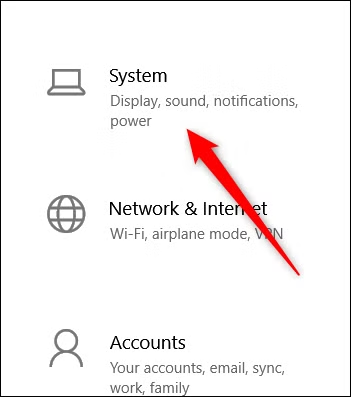
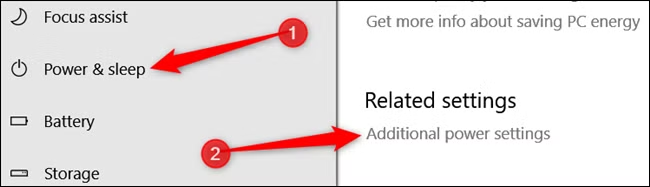
On the System page, select Power & Sleep from the left-hand menu.
Then, under Related Settings, click Additional Power Settings to open the classic Power Options window.
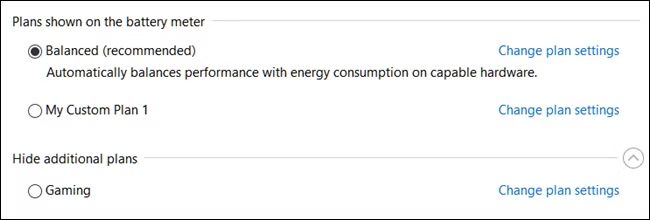
In the Power Options window, click Show additional plans to expand the available power schemes.
Then select Ultimate Performance to activate the plan.
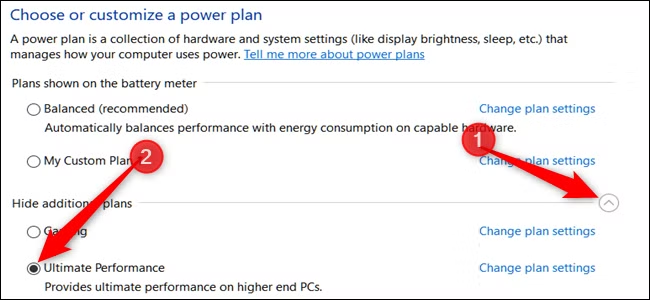
If you’re using a laptop, this option may not appear under this section.
What to Do if You Don’t See the Ultimate Performance Plan
On some computers, especially laptops, the Ultimate Performance plan may not appear in Power Options. If it is missing, you can add it manually using either Command Prompt or PowerShell.
Open Command Prompt or PowerShell with administrator privileges. To do this, search for the app from the Start menu, right-click it, and select Run as administrator.
Then enter the following command and press Enter:
powercfg -duplicatescheme e9a42b02-d5df-448d-aa00-03f14749eb61
After the command runs successfully, return to Power Options and check the available plans again. The Ultimate Performance option should now appear.

If the Power Options window was already open when you added the plan, you may need to close and reopen it before Ultimate Performance appears.
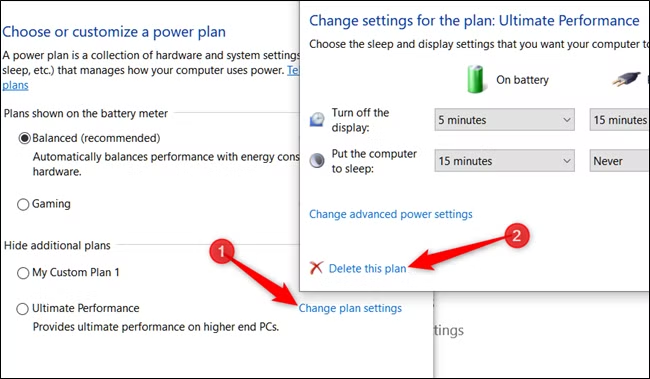
If you later decide you no longer want the plan, first switch to a different power plan. Windows may not allow you to delete a plan that is currently active.
Next, click Change plan settings next to the Ultimate Performance plan, then choose Delete this plan to remove it.
The Ultimate Performance plan is only really useful in specific cases, but it can make a difference if you’re trying to squeeze every last bit out of your system.
Frequently Asked Questions:
What is the Ultimate Performance power plan in Windows 10?
The Ultimate Performance plan is a power scheme designed to reduce power-saving delays and prioritize maximum system performance.
How do I enable the Ultimate Performance plan in Windows 10?
Open Power Options, expand Show additional plans, and select Ultimate Performance. If the option is missing, you can add it with a PowerShell or Command Prompt command.
Why is the Ultimate Performance plan missing on my PC?
Some systems, especially laptops, do not show the plan by default. You may need to enable it manually using the powercfg command.
Does Ultimate Performance improve gaming performance?
It can improve responsiveness in some cases, but the gaming performance difference is usually small because modern games already push hardware to high performance levels.
Is Ultimate Performance safe to use on a laptop?
Yes, but it can increase battery drain, heat, and power consumption. It is best to use it while the laptop is plugged in.
What is the difference between High Performance and Ultimate Performance?
Both prioritize speed, but Ultimate Performance reduces additional power-management delays and disables more energy-saving behavior.
Can I remove the Ultimate Performance plan later?
Yes. Switch to another power plan first, then open the plan settings for Ultimate Performance and choose Delete this plan.
Conclusion:
Enabling the Ultimate Performance power plan in Windows 10 can help reduce power-saving delays and keep your system focused on maximum performance. It is most useful for demanding workloads such as video editing, 3D rendering, and other resource-intensive tasks.
Keep in mind that this mode can increase power consumption and heat, especially on laptops. If you decide you no longer need it, you can switch back to another power plan or remove Ultimate Performance from Power Options.
