



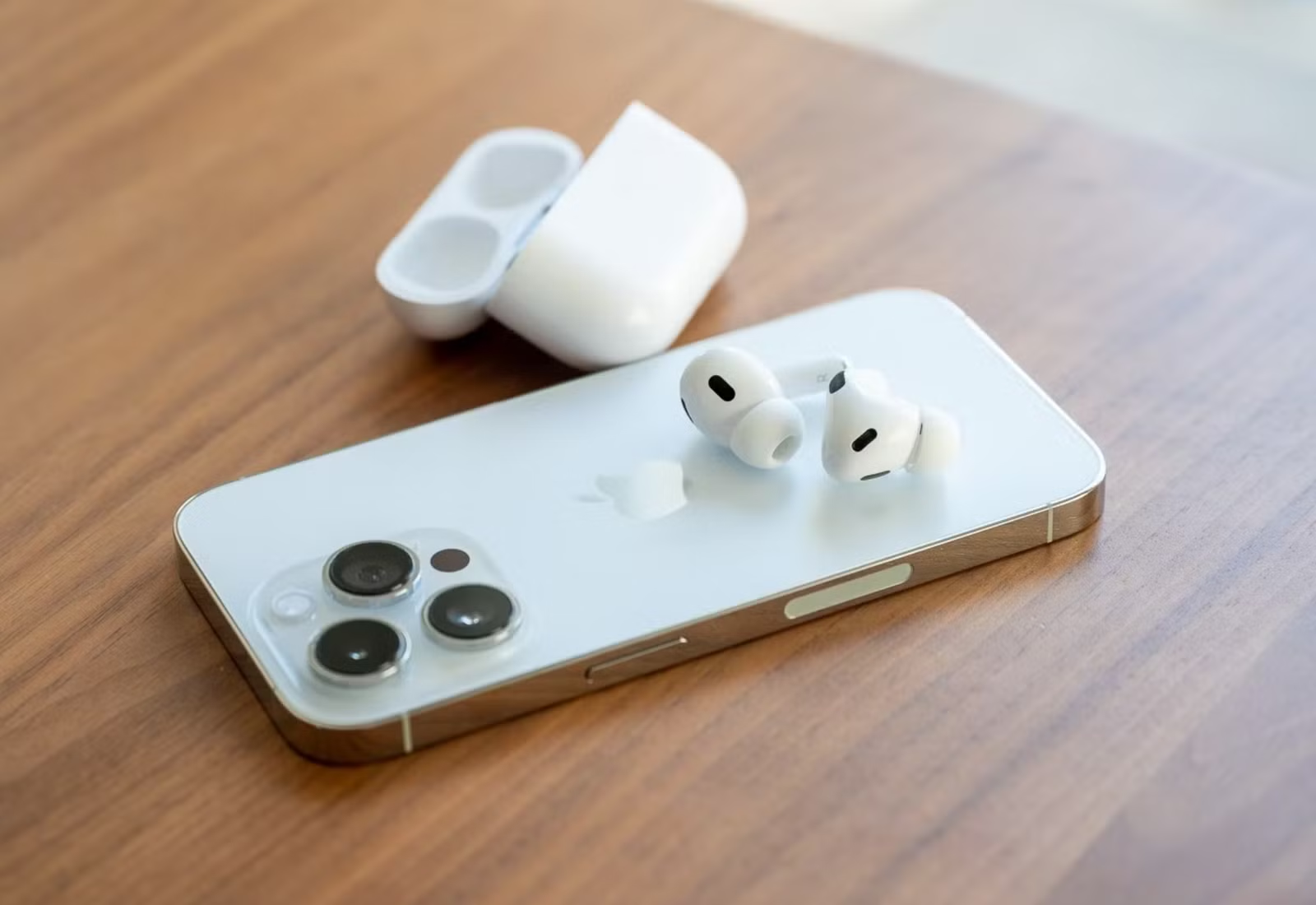
Apple has released several AirPods models and generations over the years, and the differences between them can be difficult to spot at first glance. If you’re not familiar enough with AirPods to identify the generation by appearance alone, checking the model number is one of the easiest ways to determine which version you have.
The Model Number of Every AirPods Type
The easiest way to identify your AirPods is by checking their model number. Although Apple has released several AirPods generations over the years, some models look very similar, making it difficult to tell them apart just by appearance.
By comparing the model number printed on your AirPods with the list below, you can quickly determine exactly which AirPods model and generation you own.
| AirPods Model | Model Number | Charging Case Model Number | Release Year |
|---|---|---|---|
| AirPods (1st generation) | A1523, A1722 | Lightning Charging Case: A1602; Wireless Charging Case: A1938 | 2016 |
| AirPods (2nd generation) | A2032, A2031 | Lightning Charging Case: A1602; Wireless Charging Case: A1938 | 2019 |
| AirPods (3rd generation) | A2565, A2564 | Lightning Charging Case: A2897; MagSafe Charging Case: A2566 | 2021 |
| AirPods Pro (1st generation) | A2084, A2083 | Lightning/MagSafe Charging Case: A2190 | 2019 |
| AirPods Pro (2nd generation) | A2931, A2699, A2698 | MagSafe Charging Case with Lightning: A2700 | 2022 |
| AirPods Max | A2096 | Not applicable | 2020 |
| AirPods Pro 2 (USB-C) | A3047, A3048, A3049 | MagSafe Charging Case with USB-C: A2968 | 2023 |
| AirPods 4 | A3053, A3050, A3054 | USB-C Charging Case: A3058 | 2024 |
| AirPods 4 with Active Noise Cancellation (ANC) | A3056, A3055, A3057 | Wireless Charging Case: A3059 | 2024 |
| AirPods Max (USB-C) | A3184 | Not applicable | 2024 |
Since several generations share a similar design, the model number is generally a more reliable way to identify your AirPods than appearance alone. Once you find the model number, simply match it with the table above to determine which version you have.
Check the Model Number Printed on Your AirPods
If you can’t identify your AirPods just by looking at them, checking the printed model number is a simple and reliable method.
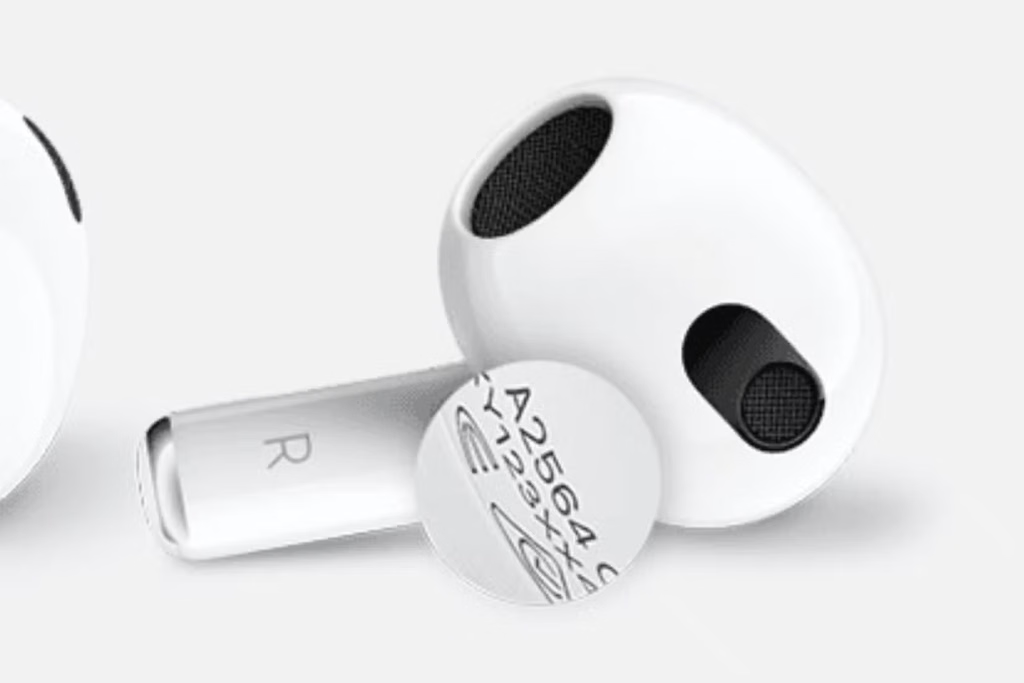
On most AirPods, the model number is printed in small text near the top of the stem, just below the earbud. You can also check the charging case, where its model number is usually printed on the inside.
Once you find the model number, compare it with the AirPods model list to determine exactly which version you own.
Find the Model Number in Bluetooth Settings
The tiny text printed on AirPods can be very difficult to read, especially because of its small size and light color. Fortunately, you can also check the model number directly from your iPhone.
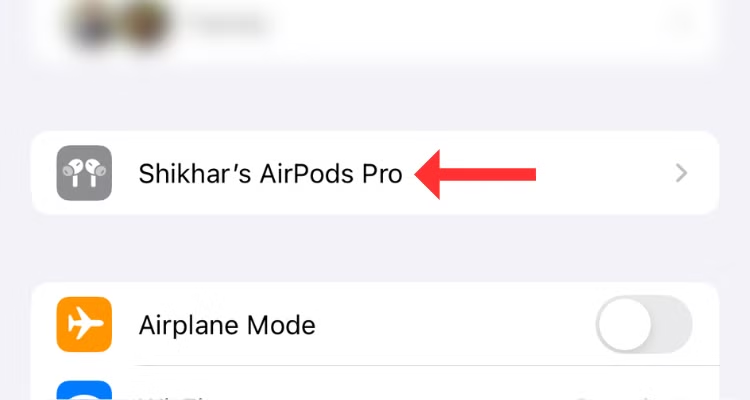
Start by opening the Settings app on your iPhone. If your AirPods are currently connected, their settings option should appear near the top of the screen, just below your Apple Account.
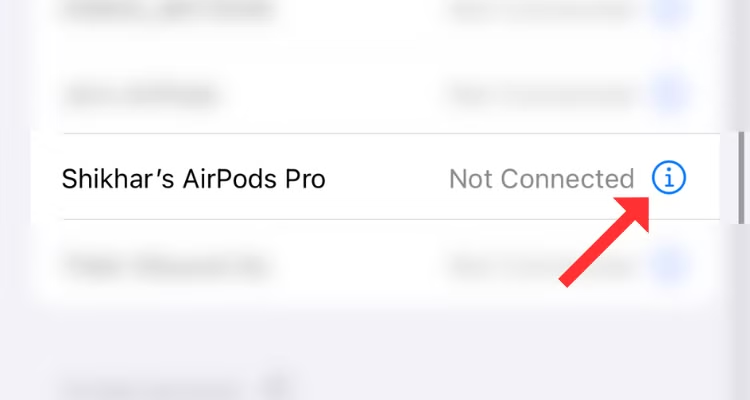
If the AirPods settings option does not appear, open Settings > Bluetooth instead. Find your AirPods in the list of connected devices, then tap the “i” information icon next to their name to view more details.
On the next screen, you’ll see the available settings and information for your AirPods. Scroll down to the About section, where you can find the Model Number along with other device details.
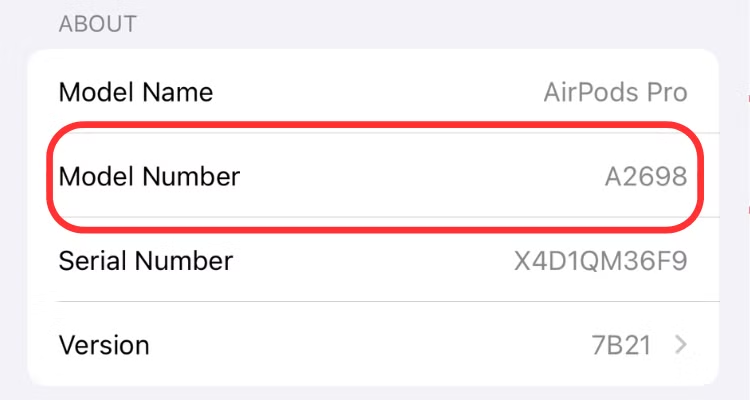
Compare the model number you found with the table above to determine which AirPods model and generation you have.
If you’re deciding between the AirPods 4 and AirPods Pro 2, compare their design, features, noise cancellation, fit, battery life, and price to see which option better matches your needs.
Frequently Asked Questions
How can I tell which generation of AirPods I have?
The easiest way is to check the model number of your AirPods and compare it with Apple’s model information. You can find the model number printed on the AirPods or in your iPhone’s Bluetooth settings.
Where can I find the model number on my AirPods?
The model number is printed in very small text on each AirPod, usually near the top of the stem. You can also find it digitally by opening your AirPods settings on a connected iPhone.
Can I identify AirPods generations by their appearance?
Sometimes, but appearance alone is not always reliable. Several AirPods generations have very similar designs, so checking the model number is a more accurate way to identify them.
How do I check my AirPods model number on an iPhone?
Connect your AirPods to your iPhone, open Settings, and select your AirPods. If they do not appear there, go to Settings > Bluetooth and tap the “i” icon next to their name. Scroll to the About section to find the model number.
Do the left and right AirPods have different model numbers?
Yes, some AirPods models use separate model numbers for the left and right earbuds. Both numbers still belong to the same AirPods generation.
Can the charging case help identify my AirPods generation?
Yes. Charging cases also have their own model numbers, which can help you identify the AirPods version. This is especially useful when different generations support Lightning, USB-C, wireless, or MagSafe charging cases.
What is the most reliable way to tell AirPods generations apart?
Checking the model number is generally the most reliable method. Design differences can be subtle, while the model number provides a clearer way to determine the exact AirPods generation you own.
Conclusion
Telling the difference between AirPods generations can be tricky because many models share a very similar design. While details such as stem length, charging case style, and available features can provide useful clues, the model number is usually the easiest and most accurate way to identify which AirPods you have.
You can find the model number printed directly on the AirPods or check it through your iPhone’s Bluetooth settings. Once you have the number, compare it with the appropriate AirPods model information to confirm the generation, charging case type, and release year.
