



Using an authenticator app for two-factor authentication (2FA) is generally more secure than relying on SMS codes. However, moving to a new phone means you also need to transfer access to the accounts stored in your authenticator app.
Fortunately, Microsoft Authenticator includes backup and recovery options that can make this process easier. Because 2FA is designed to protect your accounts even if someone knows your password, it is important to prepare before switching devices.
Before moving Microsoft Authenticator to a new phone, make sure you have the backup or recovery codes for each important account stored somewhere safe. These codes can help you regain access if something goes wrong during the transfer or recovery process.
Turn On the Backup Option on Your Old Phone
Before moving Microsoft Authenticator to a new phone, make sure backup is enabled on your old device.
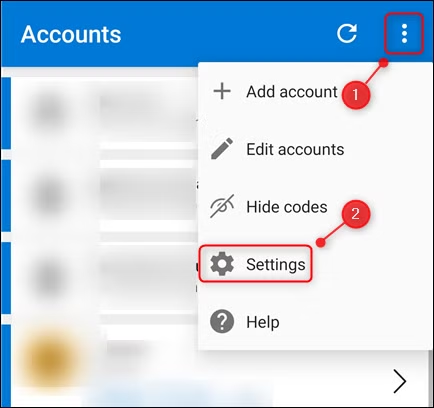
Open Microsoft Authenticator, tap the three-dot menu in the top-right corner, and then select Settings.
In the “Backup” section, toggle-On “Cloud Backup” on an Android phone, or “iCloud Backup” on an iPhone.
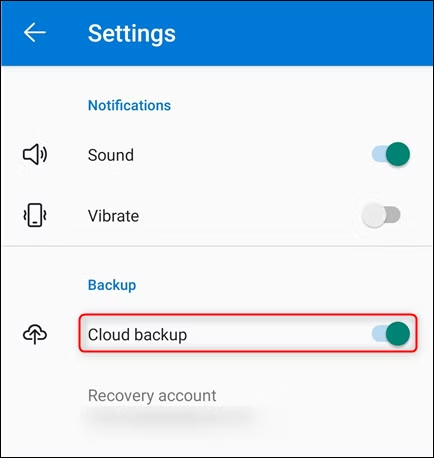
Your accounts are backed up to the Microsoft account connected to Microsoft Authenticator. On iPhone, an iCloud account may also be required for backup and recovery.
The backup can include account names, usernames, verification information, and metadata such as when the backup was created.
Microsoft Authenticator protects this backup using encryption before storing it with your account, helping keep your authentication data secure during the recovery process.
Use the Recovery Option on Your New Phone
Install Microsoft Authenticator on your new Android phone or iPhone. Avoid adding accounts manually before using the recovery feature, as restored backup data may replace matching accounts already added to the app.
To begin, open Microsoft Authenticator on your new phone and choose Begin Recovery.
Sign in with the same Microsoft account that was used to create the backup on your old phone. Microsoft Authenticator will then restore the available account information from your backup.
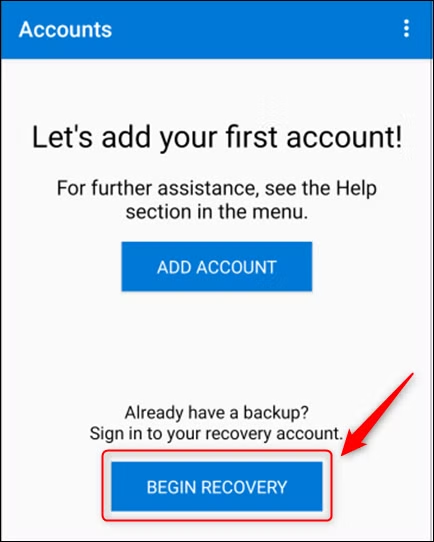
You’ll be prompted to sign in with the same Microsoft account you used to create the backup on your old phone.
After signing in, your backed-up accounts will be restored and added to Microsoft Authenticator on your new device.
Revalidate Accounts and Remove Them From Your Old Phone
Some accounts may need to be verified again on your new phone. This can involve signing in to the account or scanning a new QR code. Microsoft Authenticator will let you know if any additional verification is required.
Before removing anything from your old phone, make sure you can successfully sign in to your accounts using Microsoft Authenticator on the new device.
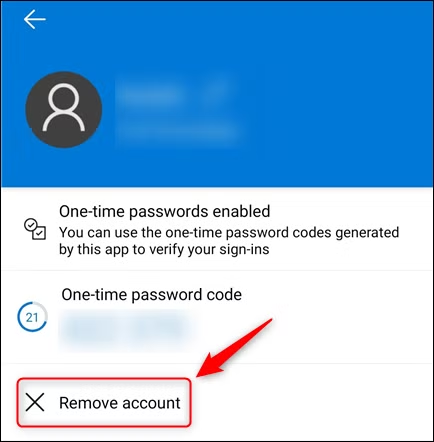
Once you have confirmed that everything is working properly, open Microsoft Authenticator on your old phone, select the account you want to delete, and tap Remove Account.
You should also open all your 2FA accounts and see if your old phone is still shown as a valid authentication device; if it is, remove it.
After you’ve removed all of your accounts from Microsoft Authenticator on the old phone, you can uninstall the app from that device.
From then on, use Microsoft Authenticator on your new phone to generate the verification codes needed for two-factor authentication.
Promoted Pick: NordVPN:
In partnership with NordVPN
Logging Policy: No-log policy
Mobile Apps: Android and iOS
Servers: 8,000+
Money-Back Guarantee: 30 days
Encryption: AES-256, RSA, and NordLynx
NordVPN is a popular VPN service known for fast performance, strong security features, and easy-to-use apps. It supports a wide range of devices, including smartphones, computers, tablets, and smart TVs.
Its combination of privacy tools, a large server network, and simple apps makes it a convenient option for users looking to improve their online privacy and security.
Frequently Asked Questions:
Can I move Microsoft Authenticator to a new phone?
Yes. Microsoft Authenticator includes backup and recovery features that can help you restore supported accounts on a new device.
Do I need my old phone to transfer Microsoft Authenticator?
It is best to keep your old phone until the transfer is complete. Make sure backup is enabled and confirm that your accounts work on the new phone before removing anything from the old device.
How do I back up Microsoft Authenticator before switching phones?
Open Microsoft Authenticator, go to Settings, and enable the available backup option. Your backup is linked to the Microsoft account used by the app.
How do I recover Microsoft Authenticator on my new phone?
Install Microsoft Authenticator on the new phone, choose Begin Recovery, and sign in with the same Microsoft account used for the backup.
Will all of my accounts transfer automatically?
Many accounts can be restored from backup, but some may require you to sign in again or scan a new QR code before they work on the new phone.
Should I remove Microsoft Authenticator from my old phone right away?
No. First, test your accounts on the new phone and make sure you can sign in successfully. After that, you can remove the accounts and uninstall the app from the old device.
What should I do if Microsoft Authenticator recovery does not work?
Use your backup or recovery codes if available, or sign in to the affected account and set up two-factor authentication again on the new phone.
Conclusion:
Moving Microsoft Authenticator to a new phone is straightforward when you use the app’s backup and recovery features. The most important step is to create a backup on your old phone before setting up Authenticator on the new device.
After restoring your accounts, make sure each one works properly and complete any required revalidation. Once everything is confirmed, you can safely remove the accounts and uninstall Microsoft Authenticator from your old phone.
