



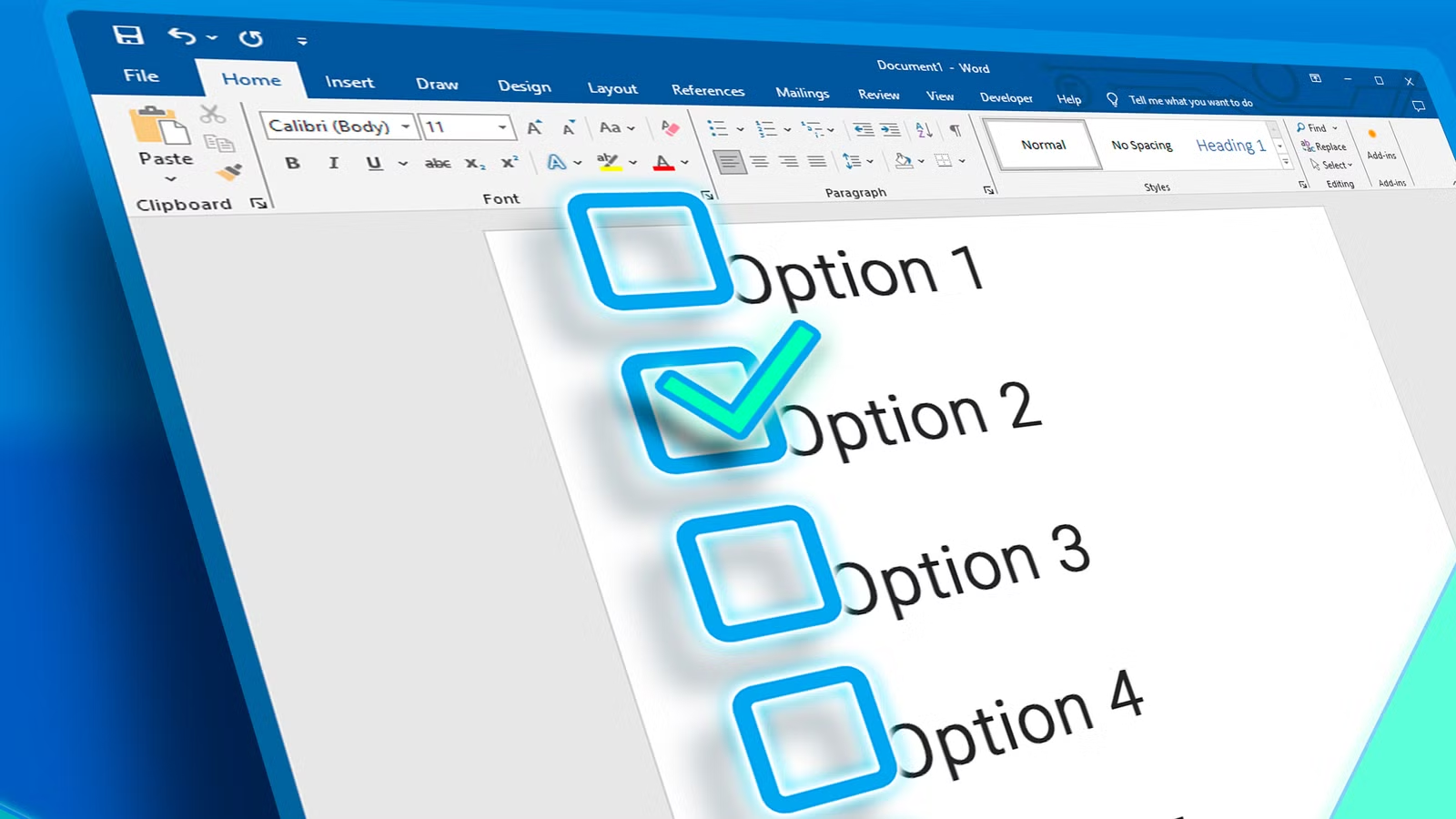
When creating surveys, forms, or checklists in Microsoft Word, adding checkboxes can make the document easier to read and complete.
There are two useful ways to add checkboxes. One method is best for documents that people will fill out digitally in Word, while the other is more suitable for documents you plan to print, such as to-do lists or paper forms.
Option 1: Use Word’s Developer Tools to Add Checkboxes
If you want to create a fillable Word form with interactive checkboxes, you first need to enable the Developer tab on the Ribbon.
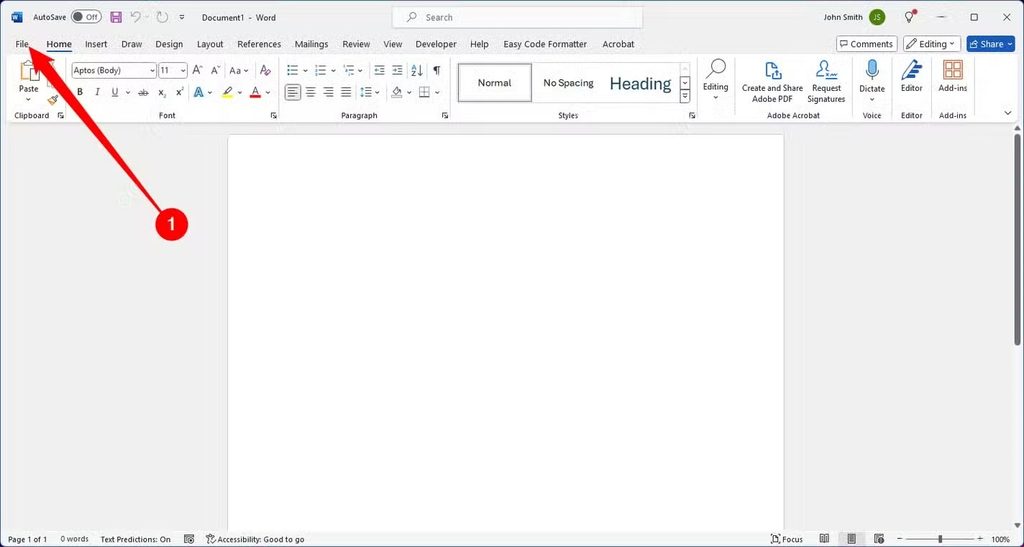
Open your Word document, click File, and then select Options from the menu.
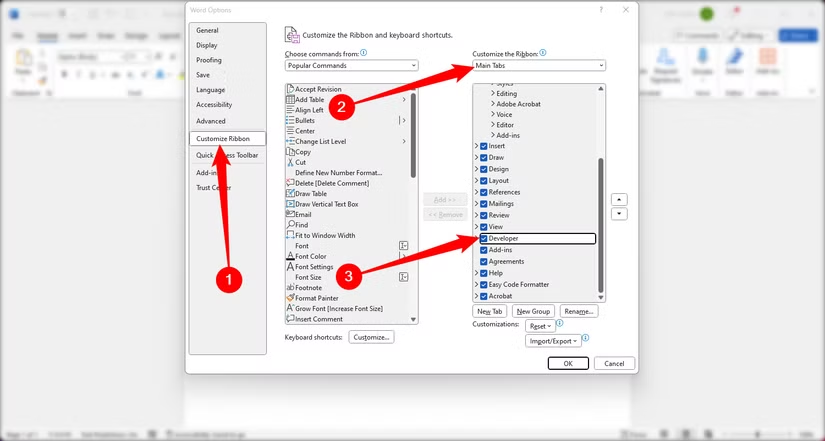
In the Word Options window, select Customize Ribbon from the left-hand menu.
On the right side, choose Main Tabs from the Customize the Ribbon drop-down menu. Then, check the box next to Developer and click OK to enable the tab.
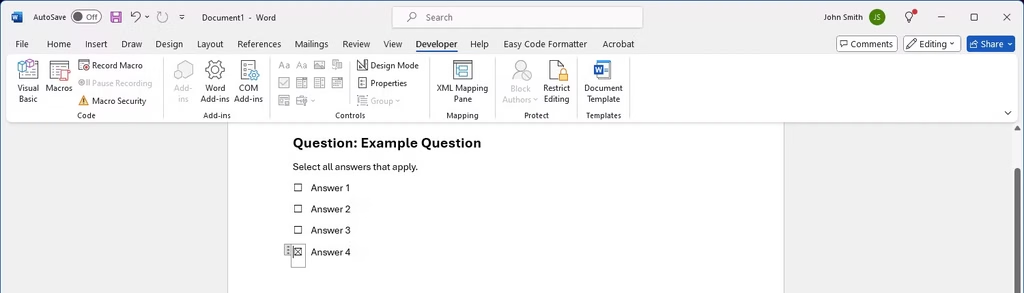
The Developer tab will now appear on the Ribbon. Place your cursor where you want to add a checkbox, open the Developer tab, and click Check Box Content Control.
Word will insert an interactive checkbox at the selected location.
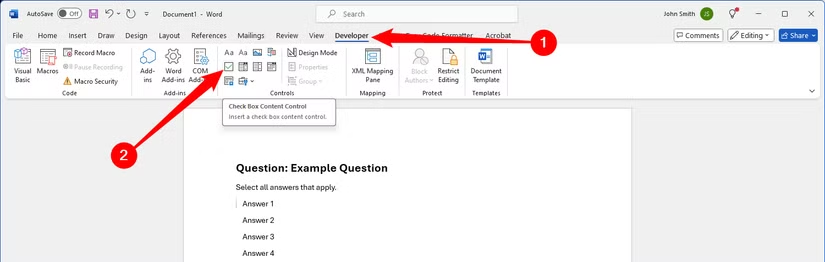
A checkbox will appear wherever you placed the cursor. You can repeat the same process to add checkboxes next to each option or answer in your document.
The checkboxes are interactive, so you can click them to mark or clear them. You can also select the checkbox control to move it, adjust its formatting, or make other changes as needed.
Option 2: Use Checkbox Bullets for Printed Documents
If you’re creating a document that will be printed, such as a to-do list or survey, you can use checkbox-style bullets instead of interactive form controls.
Start by creating a regular bulleted list in your Word document. Then, go to the Home tab and click the small arrow next to the Bullets button. If a checkbox symbol is not already available, select Define New Bullet from the menu.
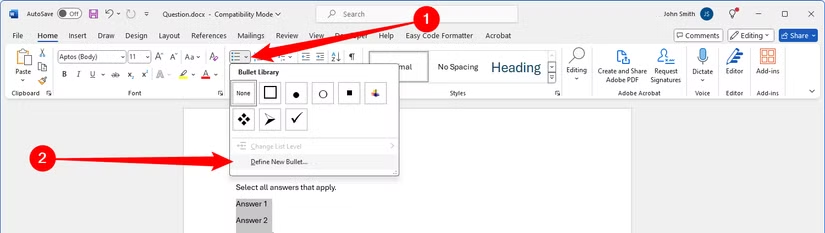
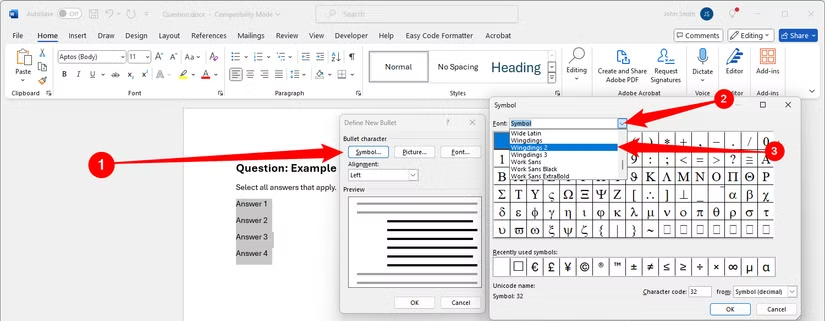
In the Define New Bullet window, click the Symbol button.
When the Symbol window opens, use the Font drop-down menu and select Wingdings 2.
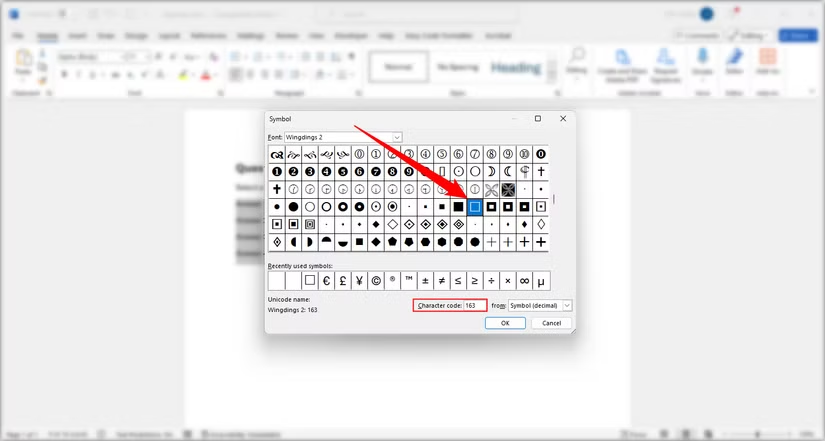
Scroll through the available symbols and choose the empty square that looks like a checkbox. You can also enter 163 in the Character Code box to select it quickly.
If you prefer a different symbol, such as an open circle, you can choose that instead.
Once you’ve selected the symbol, click OK to close the Symbol window. Then click OK again to close the Define New Bullet window.
Back in your Word document, you can now type your bullet list. The checkboxes appear instead of the regular bullet symbol.
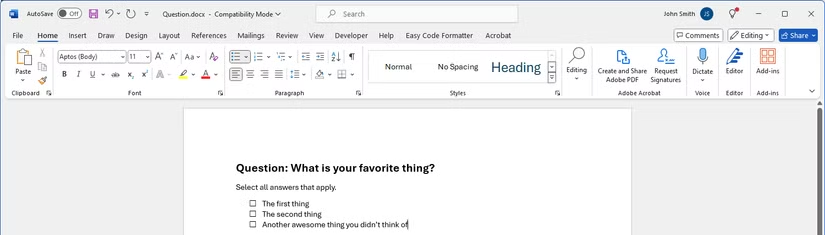
The next time you want to use the checkbox symbol, you won’t need to repeat the entire setup process.
Simply click the small arrow next to the Bullets button again, and you should find the checkbox under the Recently Used Bullets section for quick access.
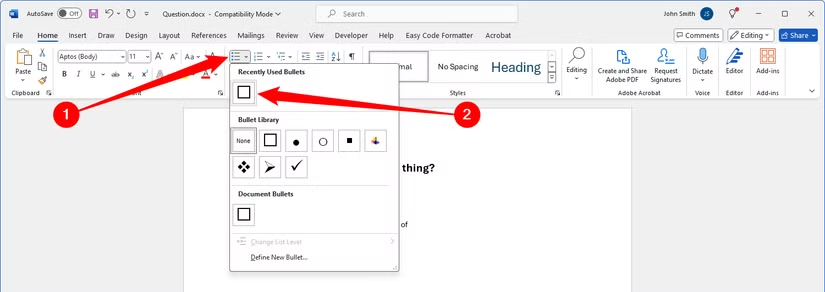
This method is best suited for documents that you plan to print. The checkbox symbols are not interactive, so they cannot be checked or unchecked directly inside a Word document.
If you also work with spreadsheets or presentations, similar checkbox options are available in Microsoft Excel and PowerPoint.
Frequently Asked Questions:
How do I add a checkbox in Microsoft Word?
You can add a checkbox by enabling the Developer tab and using the Check Box Content Control option.
How do I enable the Developer tab in Word?
Go to File > Options > Customize Ribbon, check Developer under Main Tabs, and click OK.
Can I make checkboxes clickable in Word?
Yes. Checkboxes added through the Developer tab are interactive and can be checked or unchecked directly in the document.
How do I add checkboxes for a printed Word document?
You can create a bulleted list and replace the bullet symbol with an empty square or checkbox symbol.
Are checkbox bullets in Word interactive?
No. Checkbox-style bullets are only visual symbols and are best for documents that will be printed.
Can I change the style of a checkbox in Word?
Yes. You can choose different symbols for printed checkboxes or adjust the properties and formatting of interactive checkbox controls.
Which checkbox method is best for forms in Word?
For digital forms, use the Check Box Content Control from the Developer tab. For printed forms or checklists, checkbox-style bullets are usually the easier option.
Conclusion:
Adding checkboxes to a Word document is simple once you choose the right method. For digital forms, the Developer tab lets you insert interactive checkboxes that can be checked directly in the document.
For printed checklists, surveys, or to-do lists, checkbox-style bullets are a quicker option. Both methods make Word documents easier to organize, read, and complete.
